Jira Cloud Integration
Overview
The Jira Cloud integration enables you to use OpenHands to automatically implement requirements from Jira tickets. When you create a ticket with clear requirements and acceptance criteria, OpenHands can read the ticket, generate an implementation plan, and create a pull request in your linked repository.How It Works
Once configured, you can request OpenHands to work on a Jira ticket by:- Specify the Repository: Include the repository location in either:
- The ticket body itself, or
- A comment on the ticket
- Trigger OpenHands: Activate the agent using one of these methods:
- Add an
openhandslabel to the ticket - Comment with:
@openhands please review these requirements, generate a plan, and then proceed with implementation
- Add an
Example Ticket
Here’s an example of how to structure a Jira ticket for OpenHands: Title: Add SAML Support Body:openhands label or comment with @openhands please review these requirements, generate a plan, and then proceed with implementation to start the automation process.
Platform Configuration
Step 1: Create Service Account
-
Navigate to User Management
- Go to Atlassian Admin
- Select your organization
- Go to Directory > Users
-
Create OpenHands Service Account
- Click Service accounts
- Click Create a service account
- Name:
OpenHands Agent - Click Next
- Select User role for Jira app
- Click Create
Step 2: Generate API Token
- Access Service Account Configuration
- Locate the created service account from above step and click on it
- Click Create API token
- Set the expiry to 365 days (maximum allowed value)
- Click Next
- In Select token scopes screen, filter by following values
- App: Jira
- Scope type: Classic
- Scope actions: Write, Read
- Select
read:me,read:jira-work, andwrite:jira-workscopes - Click Next
- Review and create API token
- Important: Copy and securely store the token immediately
Step 3: Configure Webhook
-
Navigate to Webhook Settings
- Go to Jira Settings > System > WebHooks
- Click Create a WebHook
-
Configure Webhook
- Name:
OpenHands Cloud Integration - Status: Enabled
- URL:
https://app.all-hands.dev/integration/jira/events - Issue related events: Select the following:
- Issue updated
- Comment created
- JQL Filter: Leave empty (or customize as needed)
- Click Create
- Important: Copy and store the webhook secret securely (you’ll need this for workspace integration)
- Name:
Workspace Integration
Step 1: Log in to OpenHands Cloud
- Navigate and Authenticate
- Go to OpenHands Cloud
- Sign in with your Git provider (GitHub, GitLab, or BitBucket)
- Important: Make sure you’re signing in with the same Git provider account that contains the repositories you want the OpenHands agent to work on.
Step 2: Configure Jira Integration
-
Access Integration Settings
- Navigate to Settings > Integrations
- Locate Jira Cloud section
-
Configure Workspace
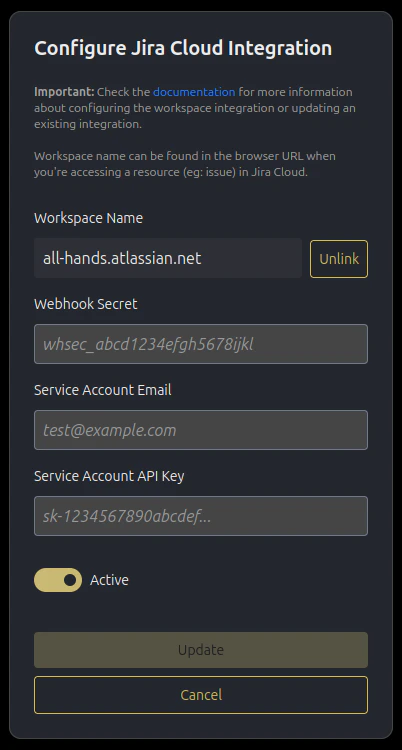
- Click Configure button
- Enter your workspace name and click Connect
- Important: Make sure you enter the full workspace name, eg: yourcompany.atlassian.net
- If no integration exists, you’ll be prompted to enter additional credentials required for the workspace integration:
- Webhook Secret: The webhook secret from Step 3 above
- Service Account Email: The service account email from Step 1 above
- Service Account API Key: The API token from Step 2 above
- Ensure Active toggle is enabled
- If no integration exists, you’ll be prompted to enter additional credentials required for the workspace integration:
Workspace name is the host name when accessing a resource in Jira Cloud.Eg: https://all-hands.atlassian.net/browse/OH-55Here the workspace name is all-hands.
- Complete OAuth Flow
- You’ll be redirected to Jira Cloud to complete OAuth verification
- Grant the necessary permissions to verify your workspace access.
- If successful, you will be redirected back to the Integrations settings in the OpenHands Cloud UI
Managing Your Integration
Edit Configuration:- Click the Edit button next to your configured platform
- Update any necessary credentials or settings
- Click Update to apply changes
- You will need to repeat the OAuth flow as before
- Important: Only the original user who created the integration can see the edit view
- In the edit view, click Unlink next to the workspace name
- This will deactivate your workspace link
- Important: If the original user who configured the integration chooses to unlink their integration, any users currently linked to that workspace integration will also be unlinked, and the workspace integration will be deactivated. The integration can only be reactivated by the original user.
Screenshots
Workspace link flow
Workspace link flow
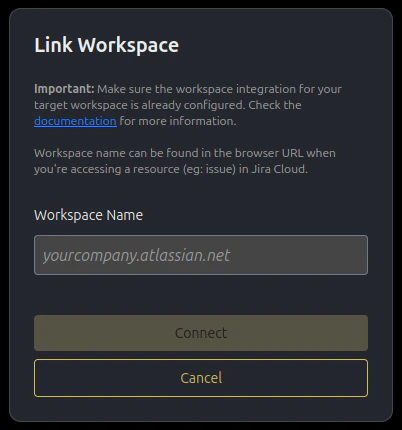
Workspace Configure flow
Workspace Configure flow
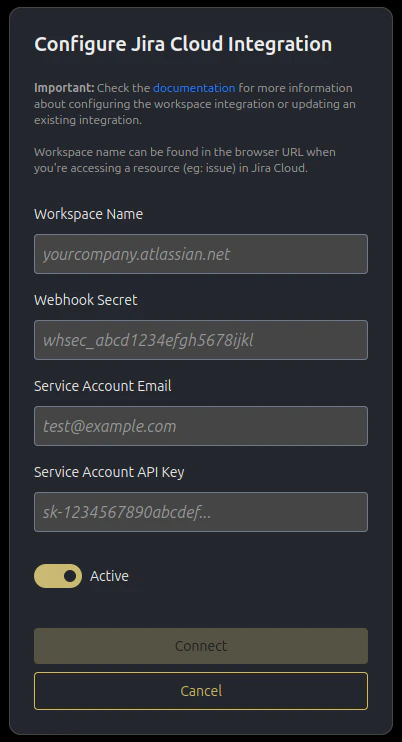
Edit view as a user
Edit view as a user
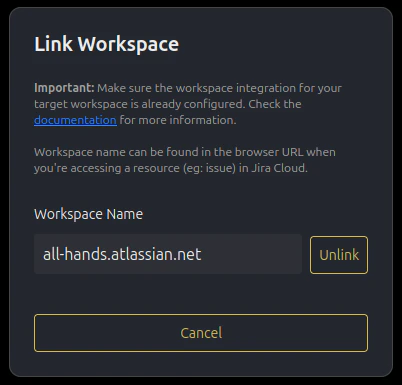
Edit view as the workspace creator
Edit view as the workspace creator